SpeechDock — Advanced Features
This page covers features that require API keys from cloud providers. These are optional enhancements — SpeechDock works fully with macOS native STT/TTS without any API keys.
API Key Setup
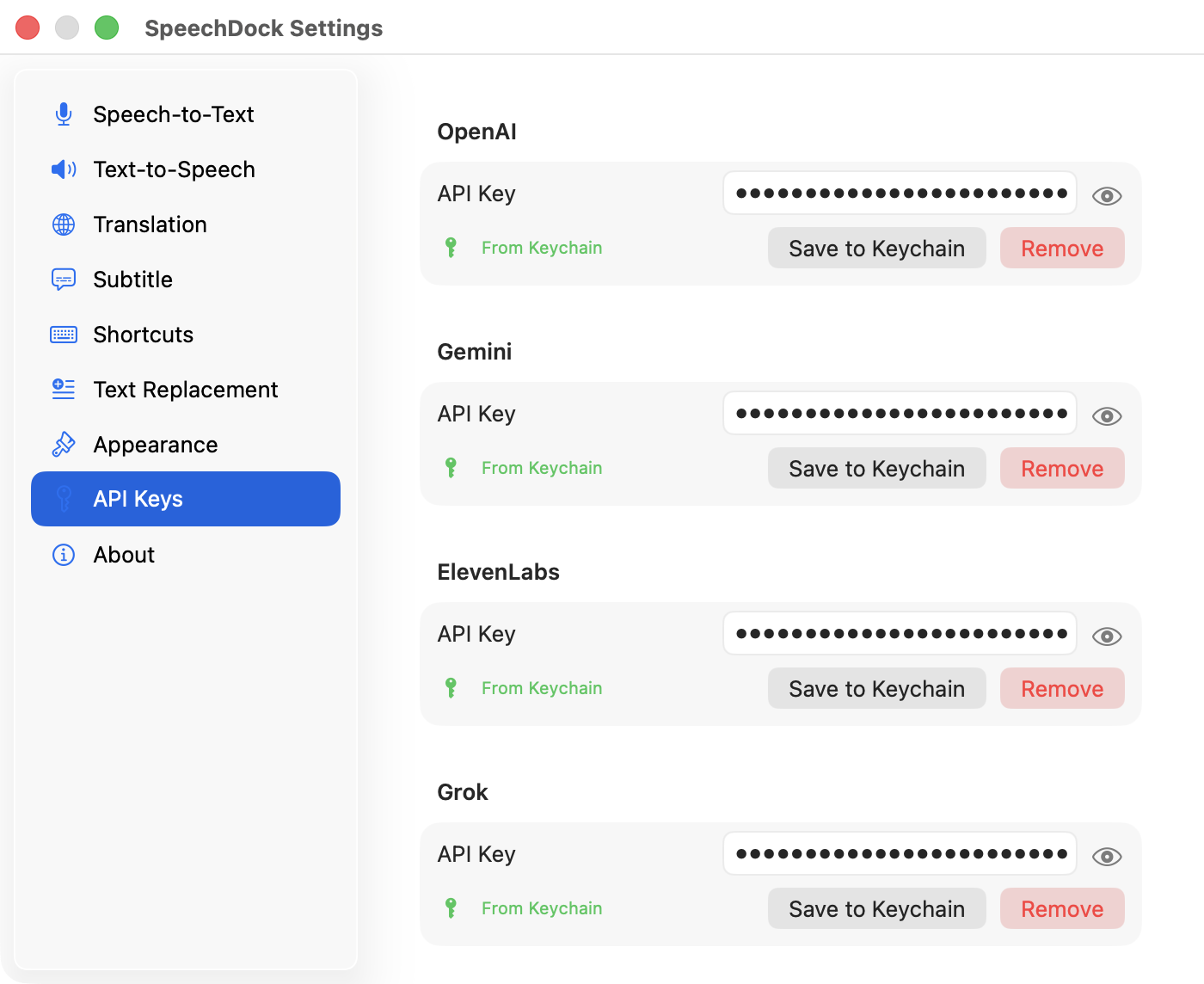
To use cloud providers, configure API keys in Settings > API Keys:
| Provider | Get API Key | Environment Variable |
|---|---|---|
| OpenAI | OpenAI Platform | OPENAI_API_KEY |
| Google Gemini | Google AI Studio | GEMINI_API_KEY |
| ElevenLabs | ElevenLabs Settings | ELEVENLABS_API_KEY |
| Grok (xAI) | xAI Console | GROK_API_KEY |
API keys are securely stored in macOS Keychain. Alternatively, you can set environment variables for development.
Cloud STT Providers
Cloud providers offer higher accuracy, more language support, and specialized features compared to macOS native STT.
| Provider | Models | Features |
|---|---|---|
| OpenAI | GPT Realtime Whisper, GPT-4o Mini Transcribe, Whisper | Streaming deltas (Whisper), high accuracy, 100+ languages |
| Google Gemini | Gemini 2.5 Flash Native Audio, Gemini 3.1 Flash Live | Multimodal, fast |
| ElevenLabs | Scribe v2 Realtime | Low latency, natural punctuation |
| Grok | Grok STT | xAI’s dedicated streaming speech-to-text |
Select the provider in Settings > Speech-to-Text.
Cloud TTS Providers
Cloud TTS provides natural-sounding voices with various styles and languages.
| Provider | Models | Voices |
|---|---|---|
| OpenAI | GPT-4o Mini TTS, TTS-1, TTS-1 HD | alloy, echo, fable, onyx, nova, shimmer |
| Google Gemini | Gemini 3.1 Flash TTS (Preview) | 30 multilingual voices (Zephyr, Kore, Puck, etc.) |
| ElevenLabs | Eleven v3, Eleven Flash v2.5 | Large voice library |
| Grok | Grok TTS | eve, ara, rex, sal, leo (20+ languages, auto-detected) |
Voice Tags (Expressive Markup)
Some providers support inline voice tags that control delivery (laughter, whispers, pauses, etc.). Tags are typed directly in the TTS panel alongside the text.
| Provider | Inline tags | Wrapping tags | Example |
|---|---|---|---|
| Gemini 3.1 Flash TTS | [whispers], [excited], [sighs], [laughs], [sarcastic], [crying], [tired], etc. | — | Welcome! [excited] Let's go. |
| Grok TTS | [pause], [long-pause], [laugh], [sigh], [gulp], [inhale], [exhale] | <soft>, <loud>, <slow>, <fast>, <whisper>, <sing> | I have <whisper>a secret</whisper>. |
| ElevenLabs v3 | [laughs], [sighs], [whispers], [excited], [tired], etc. | — | That was hilarious! [laughs] |
The empty-state TTS panel placeholder includes a “Reference” link to each provider’s official tag documentation.
Voice and Model Selection
Each provider offers different voices and models. Select them in:
- Settings > Text-to-Speech (persistent setting)
- TTS Panel header (quick switch)
Audio Output Device
Route TTS playback to any audio output device (speakers, headphones, virtual devices). Select in Settings > Text-to-Speech or the TTS panel.
Audio File Transcription
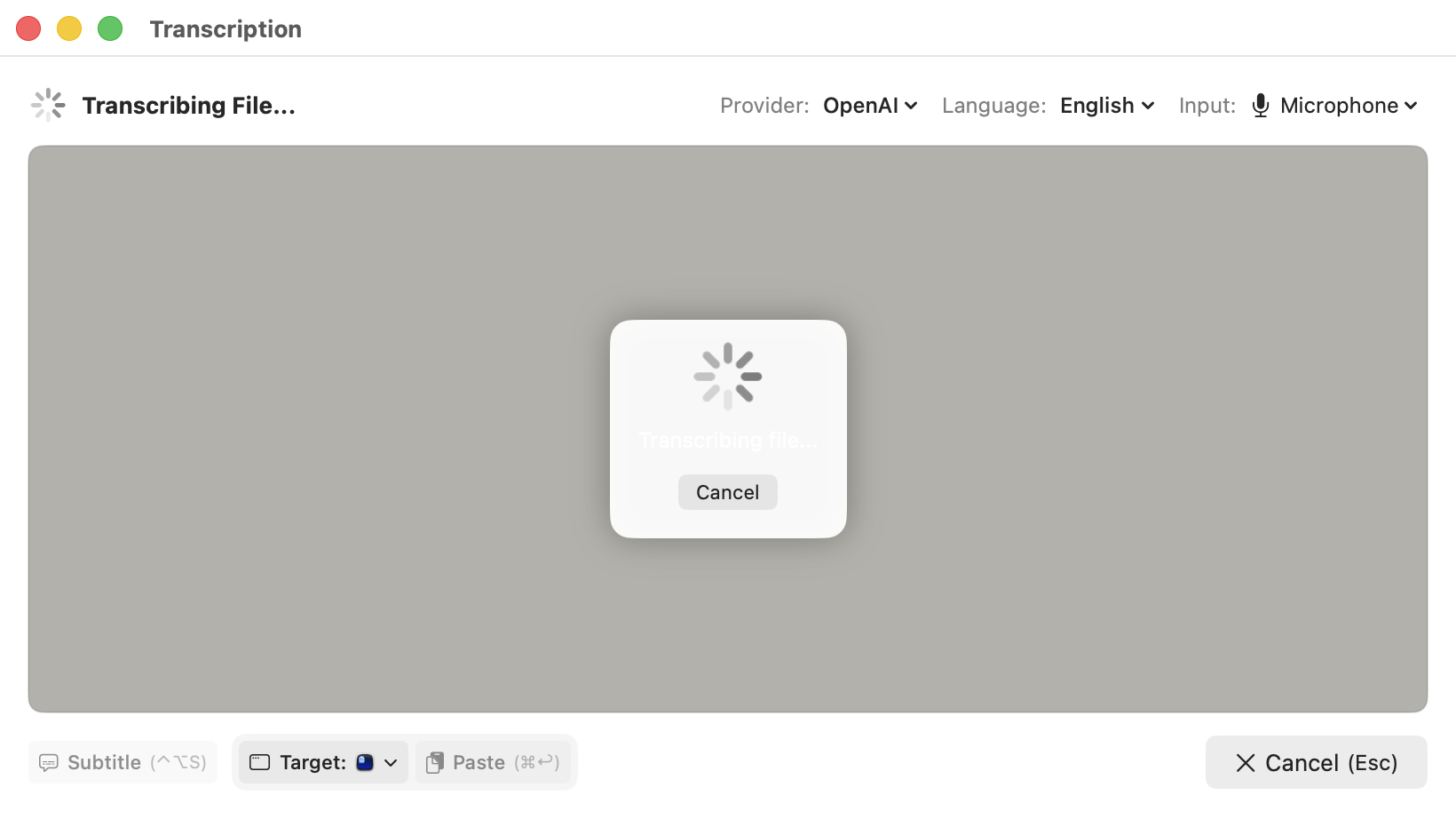
Transcribe pre-recorded audio files. Available with cloud STT providers and macOS native (macOS 26+). Not available with Grok provider.
| Provider | Formats | Max Size | Max Duration | API |
|---|---|---|---|---|
| macOS (26+) | MP3, WAV, M4A, AAC, AIFF, FLAC, MP4 | 500 MB | No limit | SpeechAnalyzer (offline) |
| OpenAI | MP3, WAV, M4A, FLAC, WebM, MP4 | 25 MB | Unlimited | Whisper |
| Gemini | MP3, WAV, AAC, OGG, FLAC | 20 MB | ~10 min | generateContent |
| ElevenLabs | MP3, WAV, M4A, OGG, FLAC | 25 MB | ~2 hours | Scribe v2 |
Note: macOS native file transcription requires macOS 26 or later and processes audio entirely on-device — no API key or internet connection needed.
How to Transcribe
Drag & Drop: Drag an audio file onto the STT panel’s text area.
Menu Bar: Select Transcribe Audio File… from the SpeechDock menu bar.
The STT panel placeholder displays the supported formats and limits for the currently selected provider.
Translation with External Providers
While macOS on-device translation supports ~18 languages, cloud providers offer:
- 25+ languages (all languages in the language list)
- Higher translation quality using LLMs
- Works on macOS 14+ (no macOS 26 requirement)
Translation Providers and Models
| Provider | Models | Notes |
|---|---|---|
| macOS (default) | System | On-device, no API key, macOS 26+ |
| OpenAI | GPT-5 Nano (default), GPT-5 Mini, GPT-5.2 | Fast, high quality |
| Gemini | Gemini 3 Flash (default), Gemini 3 Pro | Fast, multilingual |
| Grok | Grok 3 Fast (default), Grok 3 Mini Fast | Fast translation |
Switching Translation Provider
- Settings > Translation: Set the default provider and model
- Panel: Click the
⚡button next to the translation controls for quick switching
Provider Auto-Sync
When you switch STT or TTS providers, the translation provider automatically syncs:
| STT/TTS Provider | Translation Provider |
|---|---|
| OpenAI | OpenAI |
| Gemini | Gemini |
| Grok | Grok |
| ElevenLabs / macOS | macOS |
Subtitle Real-time Translation
When using subtitle mode, you can enable real-time translation that translates speech as you speak. This works with all audio sources (microphone, system audio, app audio).
How It Works
- Enable subtitle mode (
Ctrl + Option + S) - Click the globe icon (🌐) in the subtitle header to enable translation
- Select your target language and translation provider
- Start recording — translations appear in real-time
Translation Providers for Subtitles
| Provider | Debounce | Best For |
|---|---|---|
| macOS | 300ms | Fast, local, privacy-focused |
| OpenAI | 800ms | High quality, many languages |
| Gemini | 600ms | Good balance of speed and quality |
| Grok | 800ms | Fast translation |
Note: Subtitle translation uses the provider’s default model for optimal performance. This is independent of the model selected in the panel translation settings.
Features
- Caching — Repeated phrases are translated instantly from cache (up to 200 entries)
- Context-aware — LLM providers use recent sentences as context for better translations
- Pause detection — Automatically triggers translation after 1.5 seconds of silence
- Settings sync — Translation settings sync from the STT panel when subtitle mode starts
Limitations
- Translation adds some latency compared to transcription-only mode
- Cloud providers require API keys and internet connection
- macOS provider requires macOS 26+ and downloaded language packs
Language Selection
Both STT and TTS support language selection with all cloud providers:
- Auto (default): Automatically detects the spoken/target language
- Manual: Choose from 25+ supported languages
Available languages: English, Japanese, Chinese, Korean, Spanish, French, German, Italian, Portuguese, Russian, Arabic, Hindi, Dutch, Polish, Turkish, Indonesian, Vietnamese, Thai, Bengali, Gujarati, Kannada, Malayalam, Marathi, Tamil, Telugu.
TTS Speed Control (Save Audio)
When saving audio to a file, speed is controlled differently from real-time playback:
| Provider | Parameter | Range | Notes |
|---|---|---|---|
| OpenAI | — | — | GPT-4o Mini TTS has no speed parameter; speed is applied locally during playback |
| ElevenLabs | voice_settings.speed | 0.7–1.2 | Mapped from app range |
| Gemini | — | — | Gemini 3.1 Flash TTS has no speed parameter; use [pause] or similar tags in text for pacing effects |
| macOS | Words per minute | 50–500 | Based on 175 wpm baseline |
| Grok | — | — | No speed parameter; wrap text with <slow>...</slow> or <fast>...</fast> for pacing |
For real-time playback, speed is controlled locally via audio processing for providers that support it, allowing dynamic adjustment during playback. Providers without an API speed parameter (OpenAI GPT-4o Mini TTS, Gemini 3.1, Grok TTS) disable the speed slider.
Privacy Considerations
When using cloud providers:
- Audio data is sent to the respective provider’s API for processing
- Each provider has its own privacy policy and data retention rules
- For maximum privacy, use macOS native providers (all processing on-device)
- API keys are stored in macOS Keychain and never shared between providers
| Previous: Basic Features | Next: AppleScript Automation |